MirrorPlayer

Play Android Games on PC

Esports-grade big-screen mobile gaming with up to 2K/120 FPS casting and adjustable resolution and bitrate. As low as 35ms latency with flexible key mapping for wheels, skills, and items. Screen-off casting saves power; background recording captures highlights. Play like a pro with keyboard and mouse.

Free download for Windows. Includes a 3-day full-feature trial; after that, free basic features remain and advanced features need a one-time license (1 PC). For your own device casting and gameplay—not a game cheat and does not modify game files.

Android screen mirroring to PC illustration

MirrorPlayer

One-tap Android mirroring to PC with up to 120 FPS sync. No root, no APK install. Native 2K with 100Mbps bitrate. 30ms latency with keyboard and mouse control for top mobile games. Audio to PC, Wi-Fi/USB dual mode.

MirrorPlayer

Flexible key mapping with visual editor for popular games. Configure once, use forever. Local profiles for Peacekeeper Elite, Delta Force, Honor of Kings, Genshin Impact, and more.

Playing mobile games on PC via Android casting illustration

MirrorPlayer

Three-step setup for PC esports control. USB debugging, plug in, and cast. 35ms latency, 2K quality, screen-off casting, highlight recording, and smart reconnect over USB/Wi-Fi.

Quick Start

A few steps to mirror your Android phone to Windows and control it with keyboard and mouse.

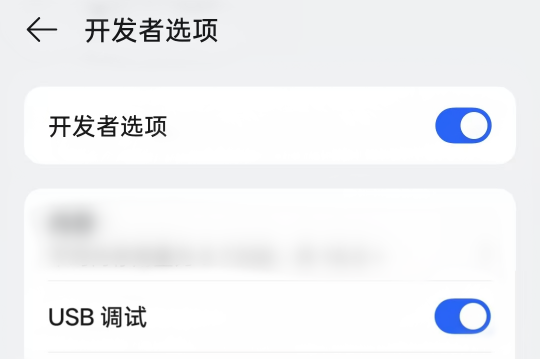
Enable Android Developer Options and USB debugging illustration

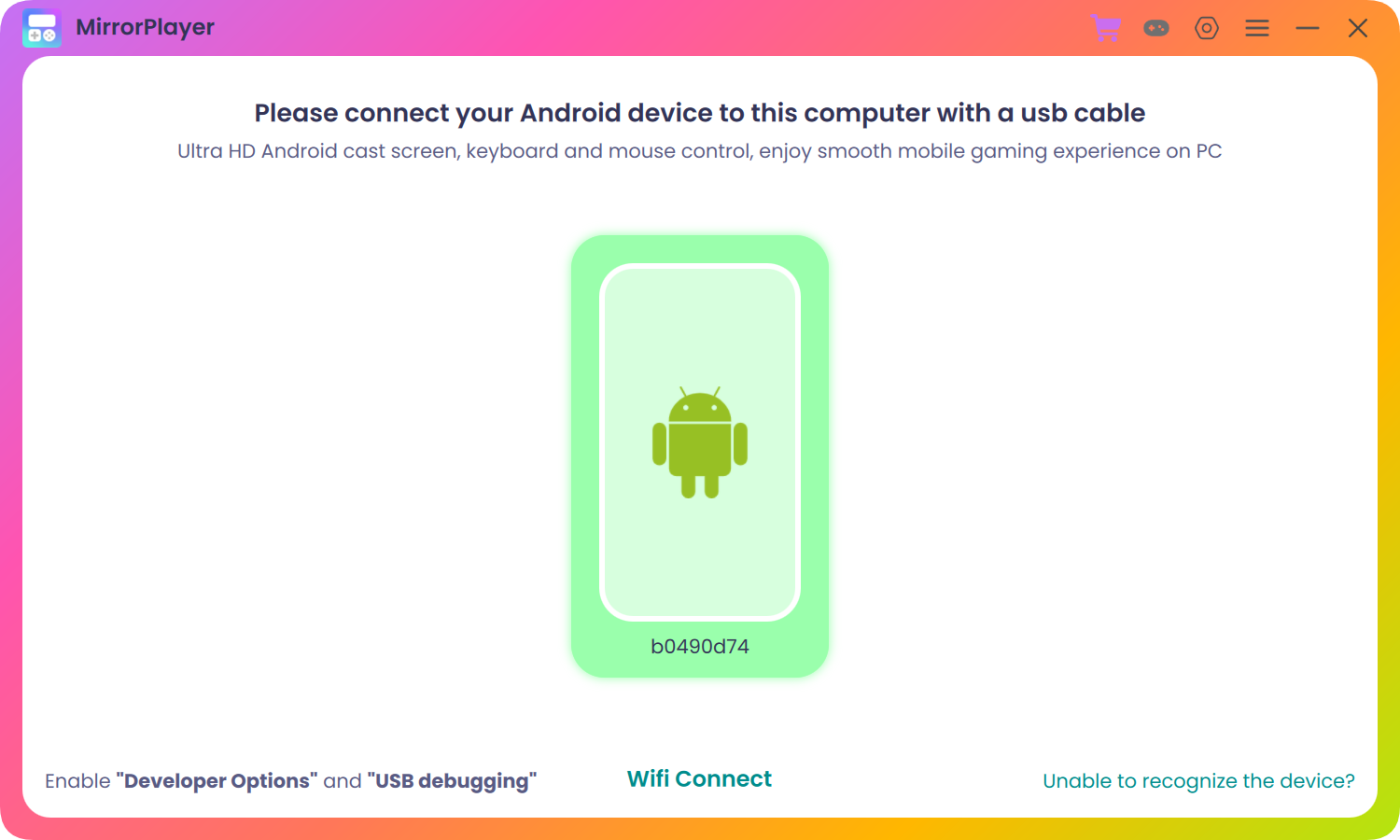
1. Enable Developer Options and USB debugging on Android, then connect phone and PC with a USB cable.

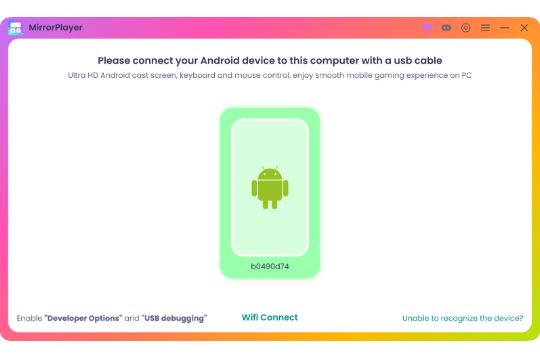
MirrorPlayer device list illustration

2. Run MirrorPlayer, click the green robot icon, and mirror your phone to the PC.

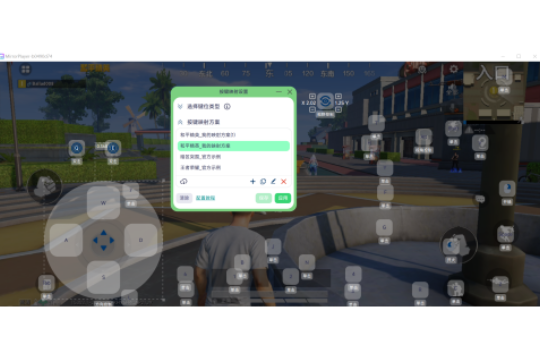
MirrorPlayer keyboard and mouse mapping setup illustration

3. Press Ctrl+K to open key mapping settings, choose a preset or create your own layout.

Key mapping configured for smooth mobile game control illustration

4. Apply the mapping profile and press "~" as prompted to enable mapping and play with keyboard and mouse.